Wondering how can I block websites on Safari? Most people have no idea their device already comes with a built-in website blocker. You don’t need an app. You don’t need to pay for anything. The tools are sitting right there in your settings — and after reading this, you’ll know exactly how to use them.
This guide covers every major device and browser: Safari on iPhone, iPad, and Mac; Chrome on Windows, Mac, and Android. Whether you’re a parent trying to protect your kids, a remote worker who keeps opening Reddit at 10am, or someone who just wants cleaner, safer browsing, you’ll find the right method here. Not just how to block — but which method actually fits your situation.
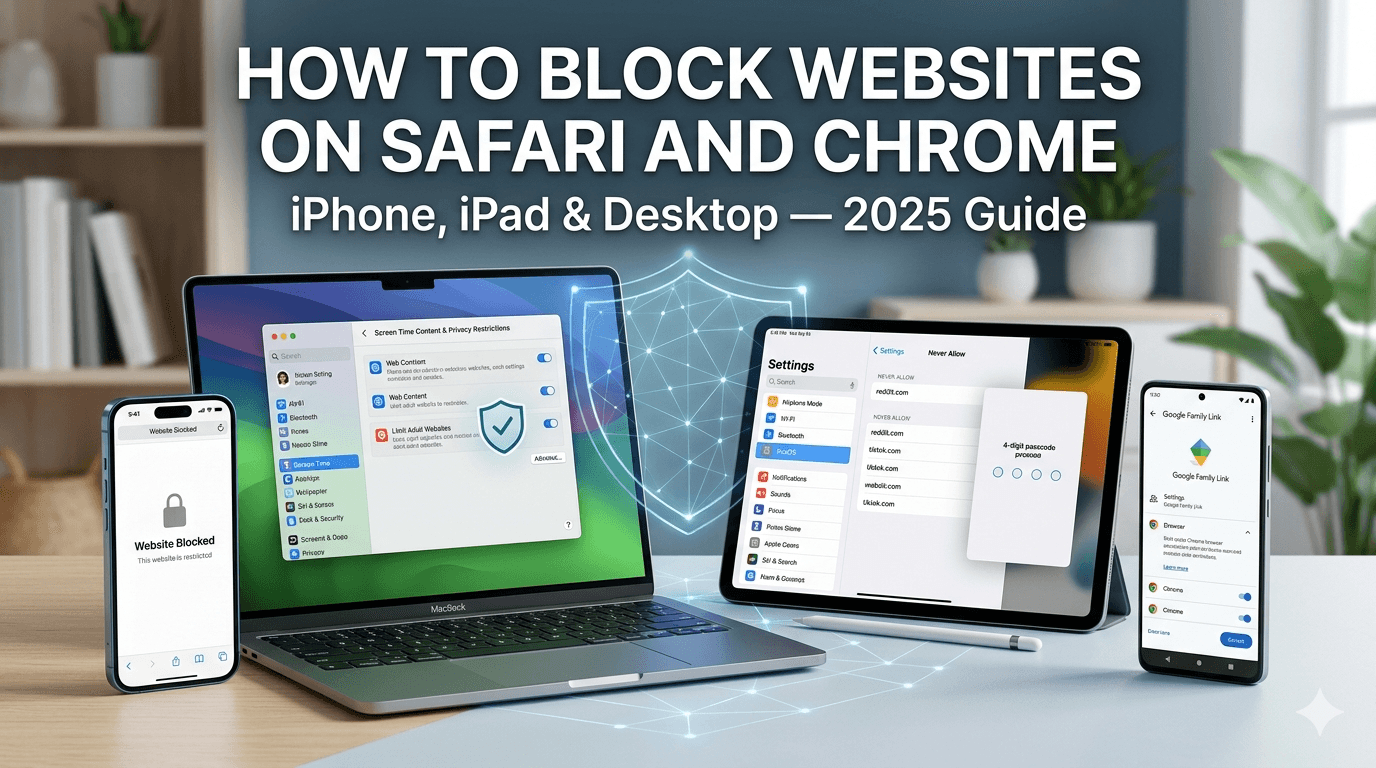
Quick Answer: To block websites on Safari on iPhone or iPad, go to Settings → Screen Time → Content & Privacy Restrictions → Web Content → Limit Adult Websites, then add URLs under “Never Allow.” On Mac, use Screen Time under System Settings. For Chrome, use a free extension like BlockSite since Chrome has no native blocking for regular users. Set a passcode on any block you create, or it can be removed in seconds.
Why You Might Need to Block Websites — and Why Most People Don’t Know How
Here’s something most guides won’t tell you upfront: a block without a passcode is not a block. It’s just an inconvenience you’ll click past in 30 seconds.
That’s the real problem. People set up restrictions, feel productive for a day, then undo everything because the block has no teeth. So before getting into the steps, it’s worth understanding what actually makes website blocking work — and what leaves gaping loopholes.
There are three reasons people want to block websites. Parental protection, personal productivity, and online security. Each one calls for a slightly different approach. A parent needs something a determined 13-year-old can’t easily bypass. A remote worker needs something that adds enough friction to break the reflex, not necessarily a permanent wall. And a security-focused user needs filtering that works across every browser, not just one.
Understanding Website Blocking — What Actually Happens When You Block a Site?
When you block a website using a browser-level tool, you’re telling that specific browser to refuse requests to that domain. Simple, but limited. Switch browsers and the block disappears entirely.
OS-level blocking, like Apple’s Screen Time or editing your device’s hosts file, works differently. It blocks the domain at the system level, so it doesn’t matter which browser someone opens. That’s why Screen Time on iPhone blocks websites in Safari, Chrome, and every other installed browser simultaneously.
Built-in Controls vs. Third-Party Apps
Built-in tools are generally more reliable for parental control because they’re harder to remove without a passcode. Third-party apps and extensions can be deleted. A child who finds BlockSite in Chrome’s extensions can simply uninstall it.
For adults managing their own habits, extensions are often more flexible — they support scheduling, allow whitelisting, and don’t require admin access.
Does Blocking Work in Incognito or Private Mode?
This is the loophole most guides skip. Chrome extensions do NOT work in Incognito by default. You have to manually enable them in Chrome’s extension settings. Go to chrome://extensions, find your blocker, click Details, and toggle “Allow in Incognito” to on.
Screen Time on iOS blocks websites in private browsing automatically. That’s one area where Apple’s built-in approach beats third-party tools.
Can Blocks Be Bypassed?
Yes — almost every blocking method has a workaround. A VPN can bypass DNS-level and router-level blocking. Deleting a Chrome extension removes extension-based blocks. Screen Time without a passcode offers zero real protection.
Closing these loopholes is where most guides stop short. You’ll find specific fixes in each section below.
How to Block Websites on Safari on iPhone and iPad
Screen Time is the most powerful built-in tool Apple gives you, and most people have never opened it past the weekly screen time report.
Step-by-Step: Block Specific Websites Using Screen Time
- Open Settings and tap Screen Time
- Tap Content & Privacy Restrictions and toggle it on
- Tap Content Restrictions then Web Content
- Select Limit Adult Websites
- Under “Never Allow,” tap Add Website and enter the URL
- Tap Done
That’s it. The site is now blocked across every browser on that device, including Chrome, Firefox, and any third-party browser.
How to Block All Adult Content With One Toggle
On the same Web Content screen, selecting Limit Adult Websites automatically activates Apple’s built-in adult content filter. It’s not perfect, but it catches the vast majority of explicit material without you needing to manually enter URLs.
How to Create an Allowed-Only Whitelist
For young children, the safest approach is flipping the model entirely. Instead of blocking bad sites, you only allow specific good ones. Select Allowed Websites Only on the Web Content screen, then add the URLs you approve. Everything else is blocked by default. This is the strictest parental control option available on iOS without a third-party app.
Setting a Screen Time Passcode — The Step Most Parents Skip
Go back to the main Screen Time screen and tap Use Screen Time Passcode. Set a 4-digit code your child doesn’t know. Without this step, anyone can simply go into Settings and turn off all restrictions in under a minute.
Use a code you haven’t used anywhere else. Teenagers are surprisingly good at guessing familiar PINs.
How to Block Websites on Safari on Mac
The same Screen Time system exists on macOS, and it works just as well.
Using Screen Time on macOS
- Click the Apple menu and open System Settings
- Click Screen Time in the sidebar
- Select Content & Privacy
- Toggle on Content & Privacy Restrictions
- Click Content Restrictions then Web Content
- Follow the same steps as iOS above
Does this block Chrome too? Yes. Screen Time on Mac applies system-wide content filtering, so it covers Safari, Chrome, Firefox, and every other browser installed on that Mac.
Editing the Hosts File (Advanced Users, No App Needed)
If you want a technical, no-cost solution that requires no app and no account, editing the hosts file is your best option. It redirects domain requests to your local machine, making the site unreachable in any browser.
Open Terminal and type: sudo nano /etc/hosts
Add a new line: 127.0.0.1 www.example.com
Press Control-O to save, Control-X to exit. Then flush the DNS cache by entering: sudo dscacheutil -flushcache; sudo killall -HUP mDNSResponder
Restart your browser. The site is now blocked regardless of which browser you use.
How to Block Websites on Chrome on Windows and Mac
Here’s something Chrome doesn’t advertise: regular users have no native website blocking in Chrome. There is no built-in block list for personal accounts. Enterprise admins have URL blocking policies, but if you’re a regular user, you need an extension.
The three most reliable free options are BlockSite, StayFocusd, and Cold Turkey Blocker.
| Extension | Best For | Scheduling | Password Lock | Incognito Support |
|---|---|---|---|---|
| BlockSite | General blocking | Yes | Yes | Yes (manual enable) |
| StayFocusd | Productivity limits | Yes (time-based) | Limited | No |
| Cold Turkey | Hardcore focus | Yes | Yes (very strict) | Yes |
Step-by-Step: Setting Up BlockSite on Chrome
- Open the Chrome Web Store and search for BlockSite
- Click Add to Chrome then confirm
- Click the BlockSite icon in your toolbar
- Enter the URL you want to block and press Enter
- Go to BlockSite settings and enable Password Protection
That last step matters. Without a password, you can remove the block whenever willpower fails — which it will, usually around 2pm on a Tuesday.
Scheduling Block Times
StayFocusd is particularly useful for scheduled blocking. You can allow Twitter for 30 minutes per day, or block news sites entirely between 9am and 5pm. Once your daily limit runs out, sites are blocked until midnight. It’s a more realistic approach to focus than trying to quit sites cold turkey.
How to Block Websites on Chrome on Android
Android’s Digital Wellbeing feature tracks app usage but doesn’t offer direct website blocking. For actual URL blocking on Android Chrome, you have two real options.
Using Google Family Link for Child Devices
Google Family Link gives parents remote control over a child’s Android device. You can approve or block websites directly from your own phone. Setup requires creating a Google account for your child and linking it through the Family Link app, available on Google Play.
Once linked, go to your Family Link app, select your child’s device, tap Controls, then Content restrictions, then Google Chrome. You can block specific sites or switch Chrome to only allow approved sites.
Third-Party Apps When Built-Ins Fall Short
For adults managing their own Android browsing, apps like BlockSite (Android version) offer the most straightforward experience. Download from Google Play, grant the necessary usage access permissions, and add URLs to your block list.
One important limitation: most Android blocking apps only control the browser you configure them for. If your goal is network-wide blocking across all apps and browsers on the device, a DNS-level solution works better.
How to Block Websites for Kids — Parental Control Options That Actually Work
Screen Time and Google Family Link are both solid tools, but they have real differences worth knowing before you pick one.
Screen Time wins on simplicity and tightness of control. It’s built into every iPhone and iPad, requires no additional account, and its restrictions apply across every browser on the device. Family Link gives you more remote visibility and works well for mixed households where kids have Android devices and parents have iPhones.
Router-Level Blocking — The Only Method Kids Truly Can’t Bypass
Here’s what most parental control guides miss: any block on the device itself can potentially be removed from the device. A savvy teenager who knows your Screen Time passcode, or figures out how to reset it, can undo everything.
Router-level blocking is different. The filtering happens at the network level, before the device ever sees the request. Services like NextDNS or OpenDNS let you configure your router’s DNS settings to filter content for every device on your home network — phones, tablets, laptops, gaming consoles, smart TVs, everything.
Access your router admin panel (usually at 192.168.1.1 in any browser), find the DNS settings, and point them to NextDNS or OpenDNS’s servers. Both services have free tiers and detailed setup guides for most common router models.
What Happens When Your Child Uses a VPN?
A VPN routes traffic through an external server, bypassing your DNS filtering and router restrictions entirely. It’s a real gap. The honest answer is that no single method stops a determined, tech-savvy teenager who specifically wants to find a workaround.
The most effective response is layered protection: Screen Time or Family Link on the device plus router-level DNS filtering plus an honest conversation about why the restrictions exist. That last part is underrated. Research consistently shows that kids whose parents explain the reasoning behind rules are significantly less likely to actively circumvent them.
Blocking Malicious and Harmful Websites for Security — Not Just Productivity
This is where website blocking stops being just a convenience feature and becomes a genuine safety measure.
AI tools have made it dramatically easier to create convincing phishing sites, deepfake content, and fake investment platforms that look indistinguishable from the real thing. Cybersecurity researchers tracking campaigns like Nomani — a large-scale investment scam network — found that these operations spin up hundreds of convincing lookalike domains within days.
DNS-level filtering is the most effective security tool most home users have never set up. Services like NextDNS maintain continuously updated blocklists of known malicious domains, phishing sites, and malware distribution points. Enabling it takes about five minutes and protects every device on your network.
For browser-level protection, both Safari and Chrome have built-in phishing and malware detection that most users leave at default settings and never think about. In Chrome, go to Settings → Privacy and Security → Security and ensure Enhanced Protection is selected rather than Standard. In Safari, ensure “Warn when visiting a fraudulent website” is toggled on under Safari → Settings → Security.
Safari vs. Chrome Website Blocking — Which Is Easier to Set Up?
| Feature | Safari (via Screen Time) | Chrome (via Extension) |
|---|---|---|
| Built-in blocking | Yes | No |
| Works across all browsers | Yes (OS-level) | No (extension only) |
| Passcode protection | Yes | Extension-dependent |
| Scheduling | Limited | Yes (StayFocusd) |
| Parental controls | Excellent | Requires Family Link |
| Incognito blocking | Yes (automatic) | Manual setup required |
| Free | Yes | Yes |
For parents: Screen Time is the stronger choice, full stop. For productivity-focused adults on desktop: a Chrome extension with password protection and scheduling gives you more flexibility. For security: DNS-level filtering wins regardless of which browser you use.
Frequently Asked Questions About Blocking Websites on Safari and Chrome
Can I block a website on Safari without Screen Time? Yes. On Mac, you can edit the hosts file via Terminal to block any domain across all browsers without using Screen Time at all. On iPhone or iPad, Screen Time is the only native option, though third-party browsers like Firefox for iOS have their own content filtering settings.
How do I block websites on Chrome without an extension? On Windows, edit the hosts file by opening Notepad as administrator, navigating to C:\Windows\System32\drivers\etc\hosts, and adding 127.0.0.1 websitename.com. This blocks the site in every browser on that machine. On Mac, use Terminal as described above.
Does blocking a site on Safari also block it on Chrome on the same iPhone? Yes, when you use Screen Time. Because Screen Time operates at the iOS system level, it applies to every browser installed on that device, not just Safari.
Can someone bypass website blocks using a VPN? Yes, a VPN bypasses DNS-level and router-level blocking by routing traffic through an external server. It does not bypass Screen Time’s OS-level restrictions on iOS. For maximum protection, combine Screen Time with router-level filtering and monitor for VPN app installations on your child’s device.
How do I block websites temporarily, not permanently? Use StayFocusd on Chrome for time-based blocks that automatically expire. On iOS, use App Limits under Screen Time to set a daily time allowance for specific websites rather than blocking them outright.
Is there a free way to block websites on all devices at once? Yes. NextDNS has a free tier that allows up to 300,000 DNS queries per month, which is more than enough for most households. Configure it once at the router level and it covers every device on your network automatically.
Take Control of Your Browser — The Right Setup for Your Situation
If you’re a parent, start with Screen Time on Apple devices or Family Link on Android, set a passcode immediately, and add router-level DNS filtering as your second layer. If you’re managing your own focus, a Chrome extension with scheduling and password protection is the most practical daily tool. If security is your main concern, enable Enhanced Protection in Chrome, turn on Safari’s fraud warning, and point your router at NextDNS.
The single most common mistake is setting up one layer and calling it done. One block is one workaround away from being useless. Stack your methods, lock them with a code, and you’ll have a setup that actually holds.
Pick your device from the sections above, follow the steps, and you’ll have working blocks set up in under 10 minutes.